Spotify scroll effect

Spotify scroll effect in CapCut.

Make your playlist float over your video. Here’s how to do it in CapCut, in seven simple steps.

CapCut desktop · 7 steps
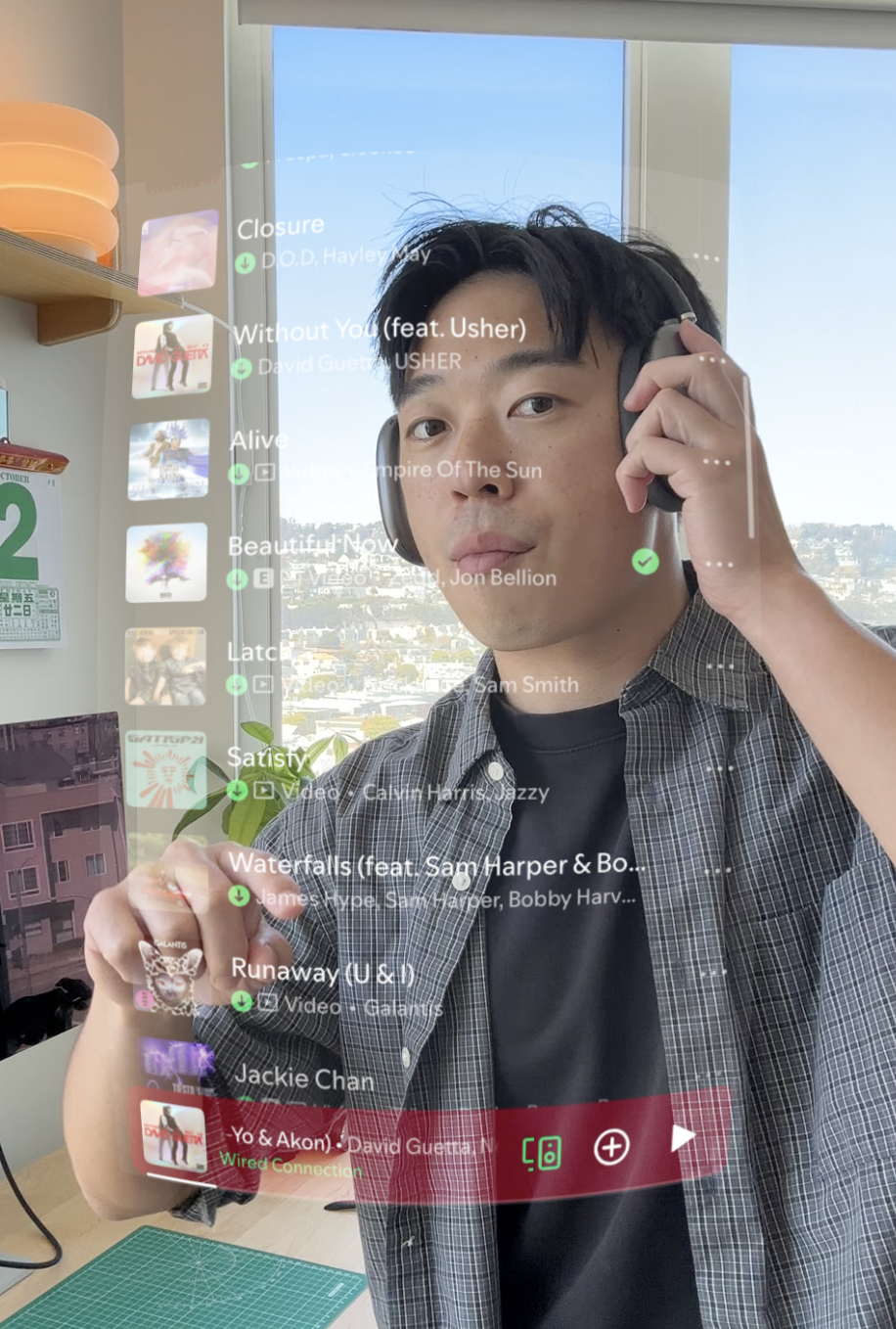
A transparent, curved Spotify playlist floating over a person wearing headphones.

How do you make the Spotify scroll effect in CapCut?

Place a Spotify screen recording above a video of yourself in CapCut. Set the Spotify clip’s blend mode to Screen to remove the black background, apply Convex Screen to that clip, and set Strength to 20. Match the playlist’s scrolling to your finger movement.

You’ll need: CapCut desktop, a video of your scrolling gesture, and a screen recording of your Spotify playlist.

Record yourself.

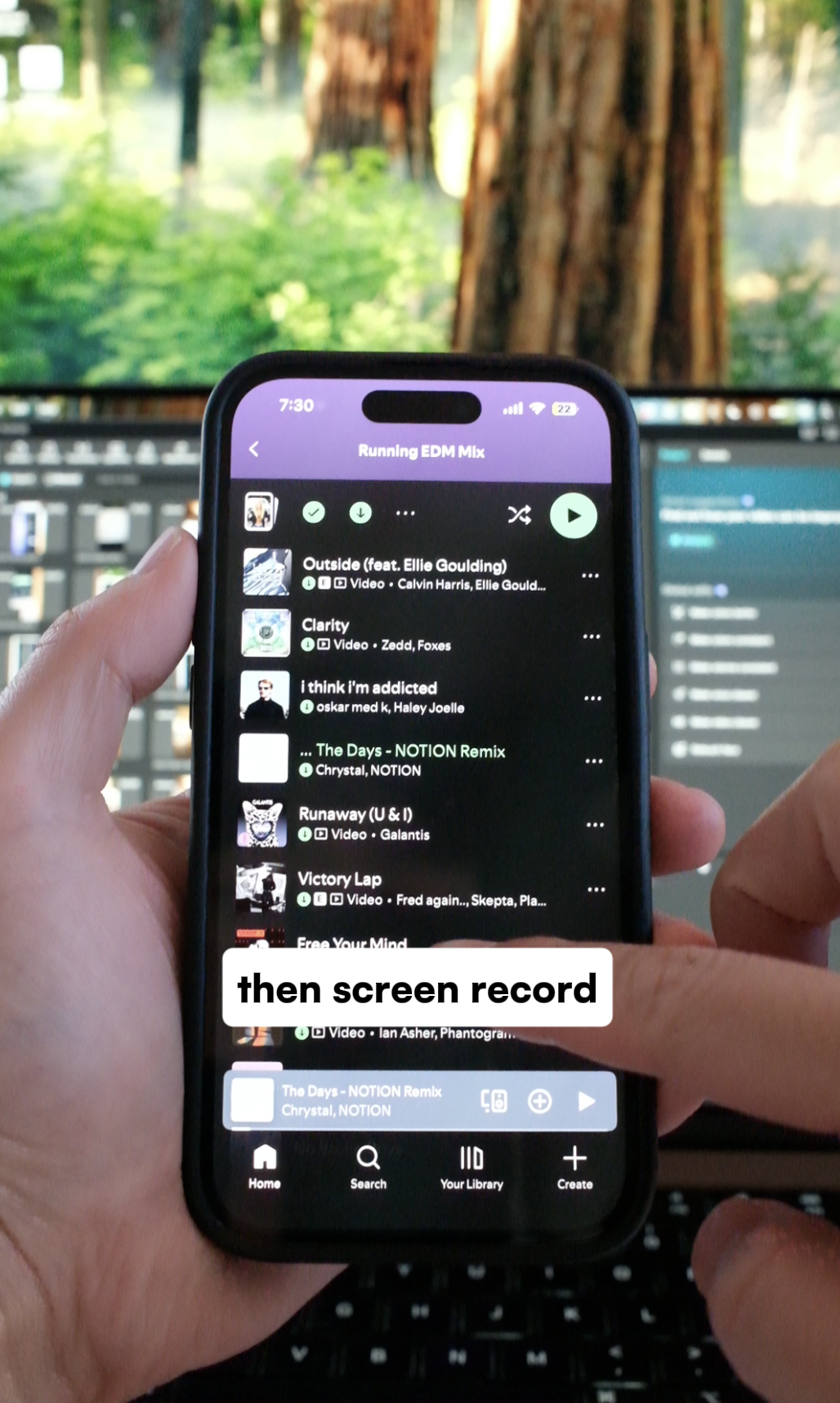
Film yourself making a scrolling motion with your finger. Then screen record yourself scrolling through a Spotify playlist. You’ll use these two clips together.
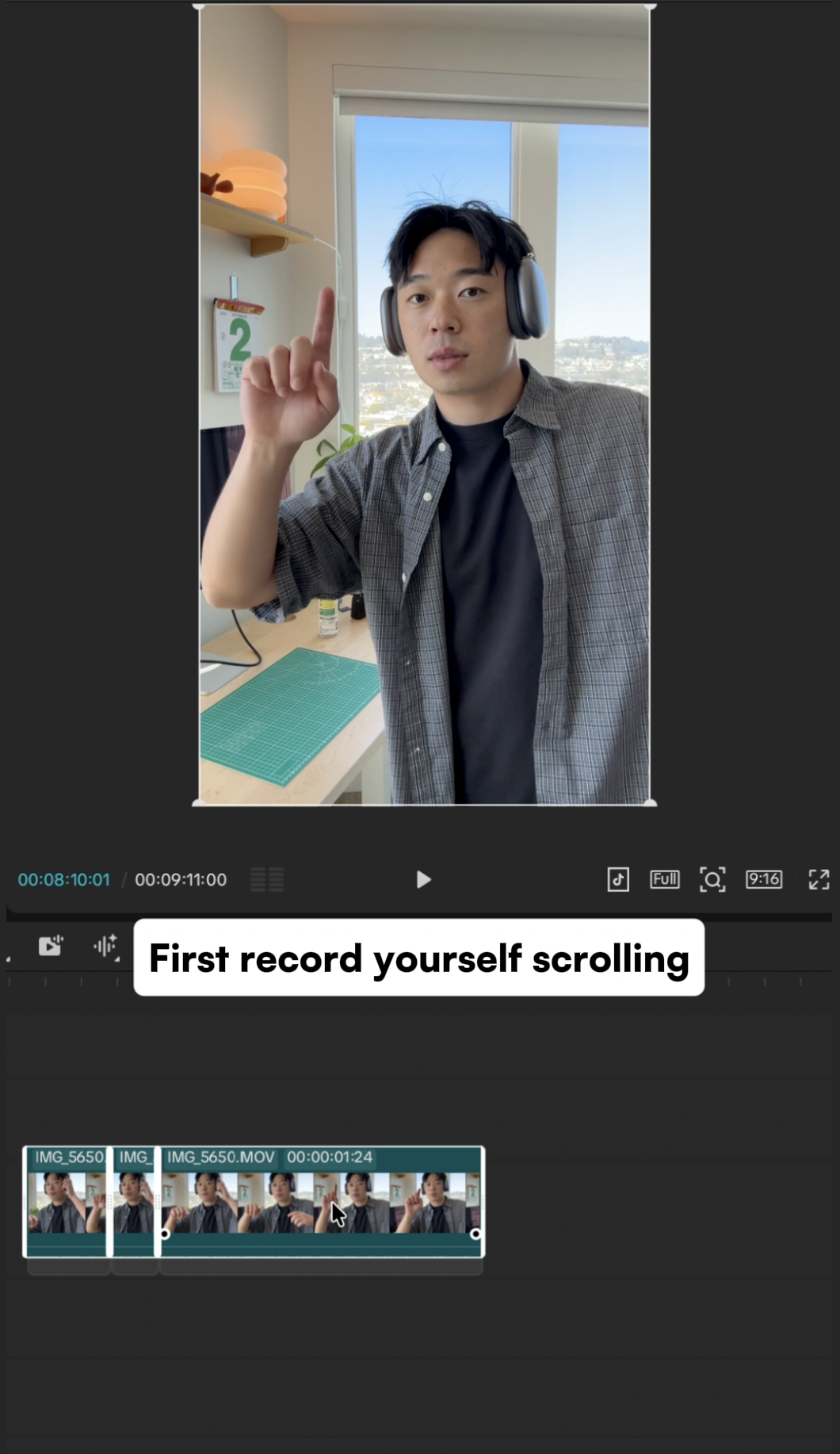
A vertical recording of a person wearing headphones and holding up a finger to scroll.
First, film your scrolling gesture.
A phone showing a Spotify playlist, ready to screen record the scrolling.
Then, screen record your Spotify playlist.

Import to CapCut.

Import both clips into CapCut. Put the video of yourself on the main track, then place the Spotify screen recording on the track above it.

Line up the playlist’s scrolling with your finger movement. Resize and position the playlist over your video.
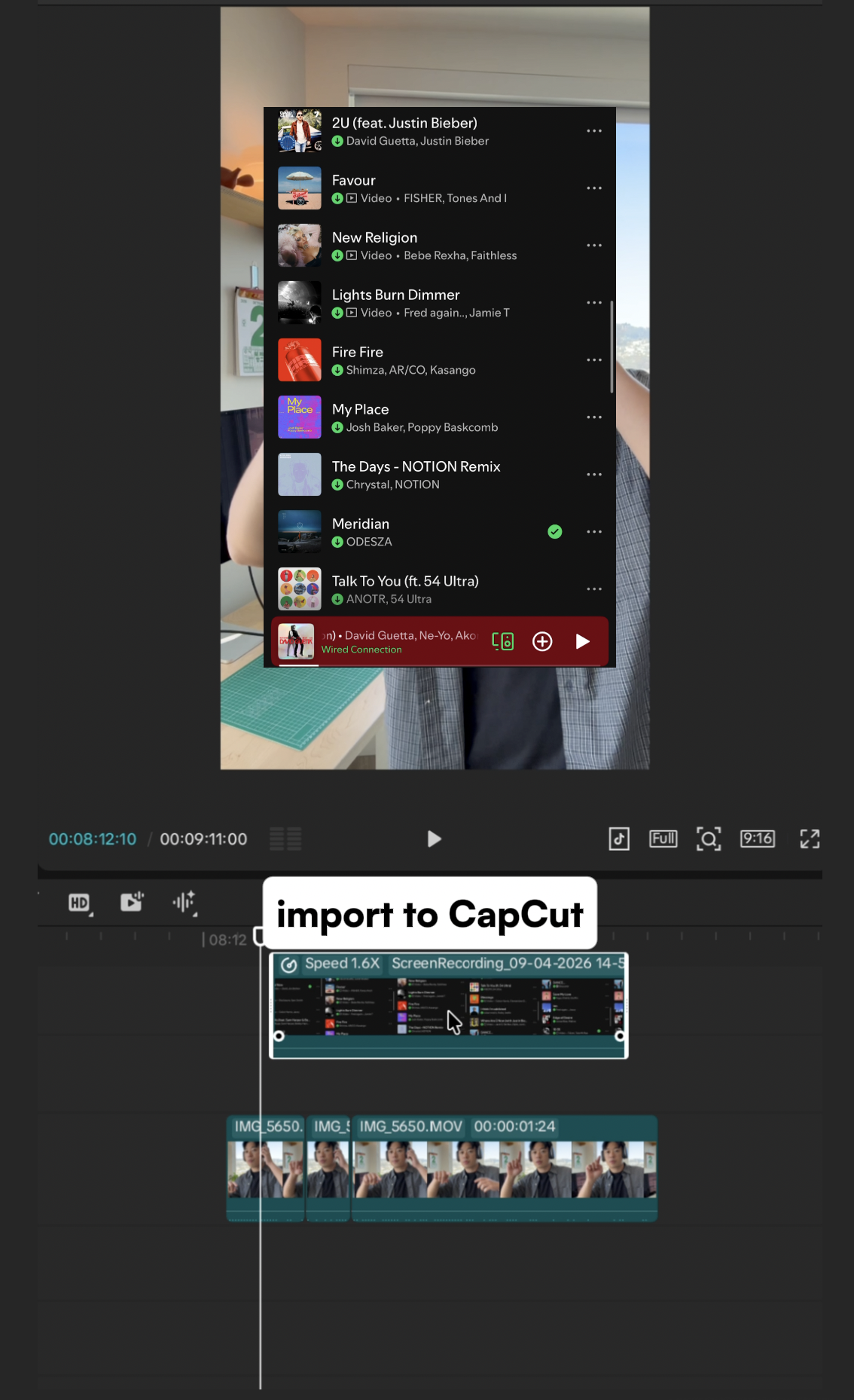
CapCut with a Spotify screen recording on the upper track and the video of the person underneath.
Spotify on top. Your video underneath.

Set the Spotify clip to Screen mode.

Select the Spotify clip. Open its blend mode menu and change Default to Screen.

This removes the black background so the playlist appears over your video.

Blend mode → Screen
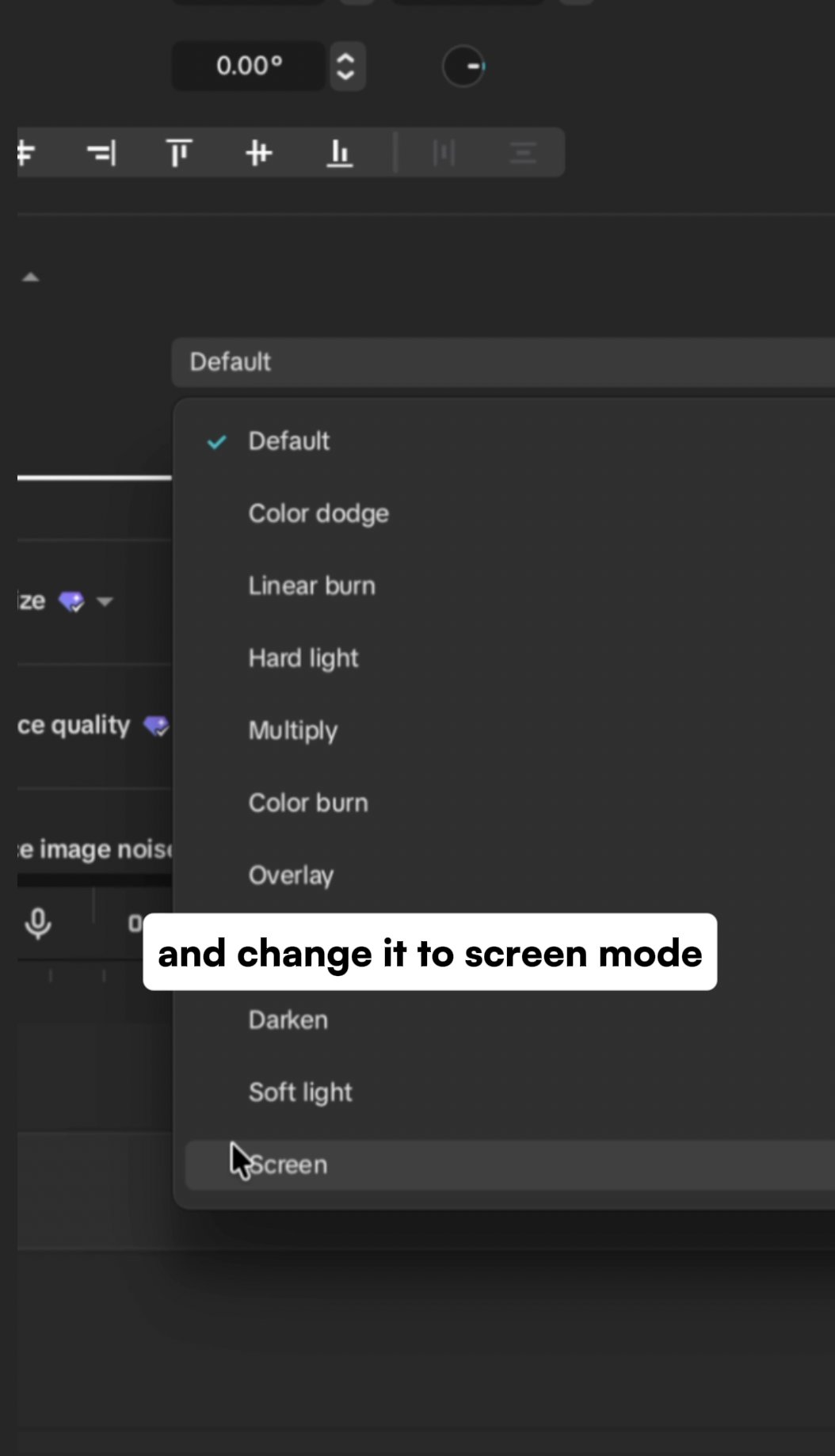
CapCut’s blend mode dropdown with Screen highlighted near the bottom.
Choose Screen from the blend mode menu.

Check the transparent playlist overlay.

You should see yourself through the playlist, with the song titles and album covers still visible.

The overlay is still flat here. Next, give it a little curve.
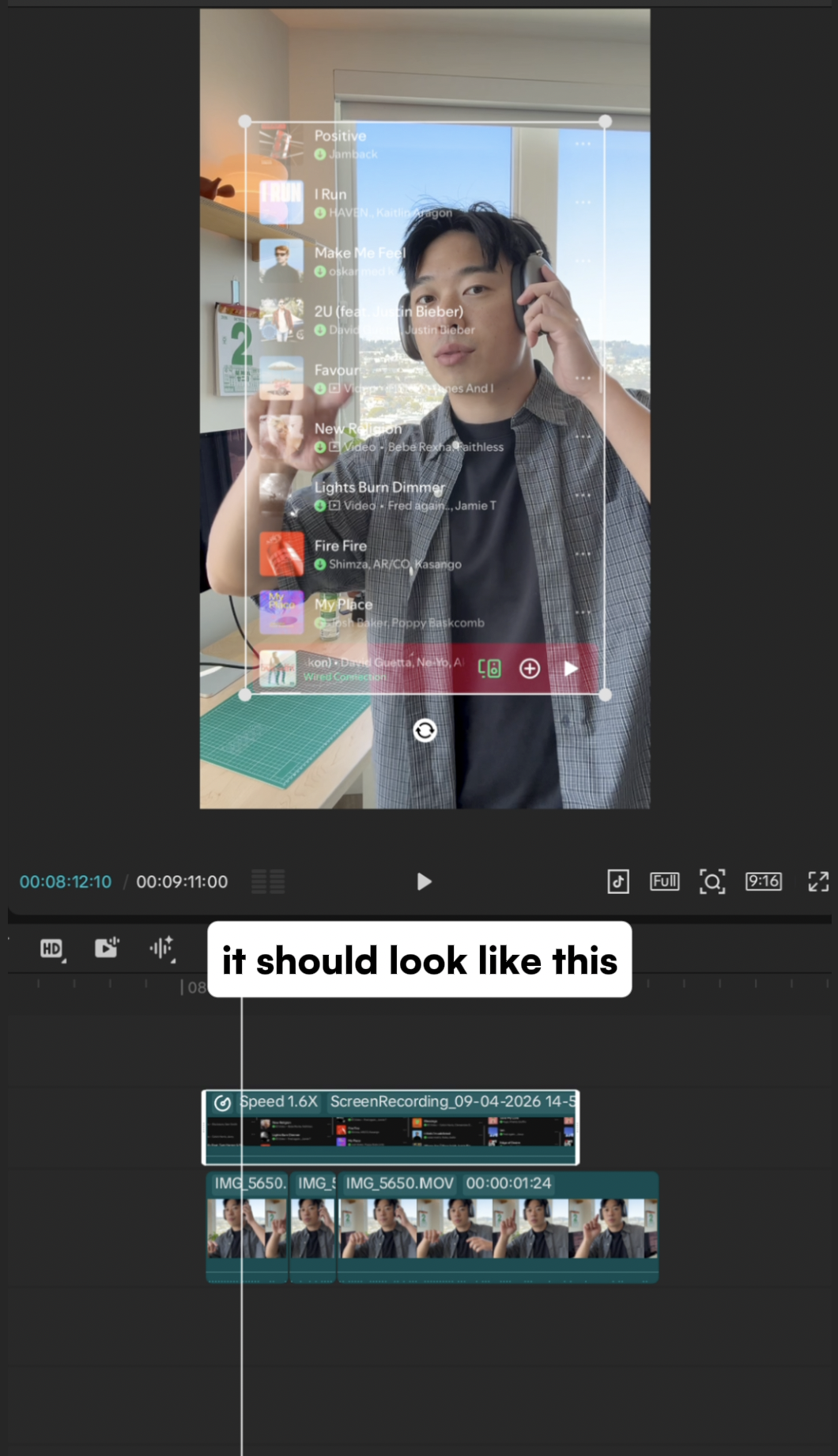
The Spotify playlist is transparent over the person after Screen blend mode is applied.
The black background is gone.

Add Convex Screen.

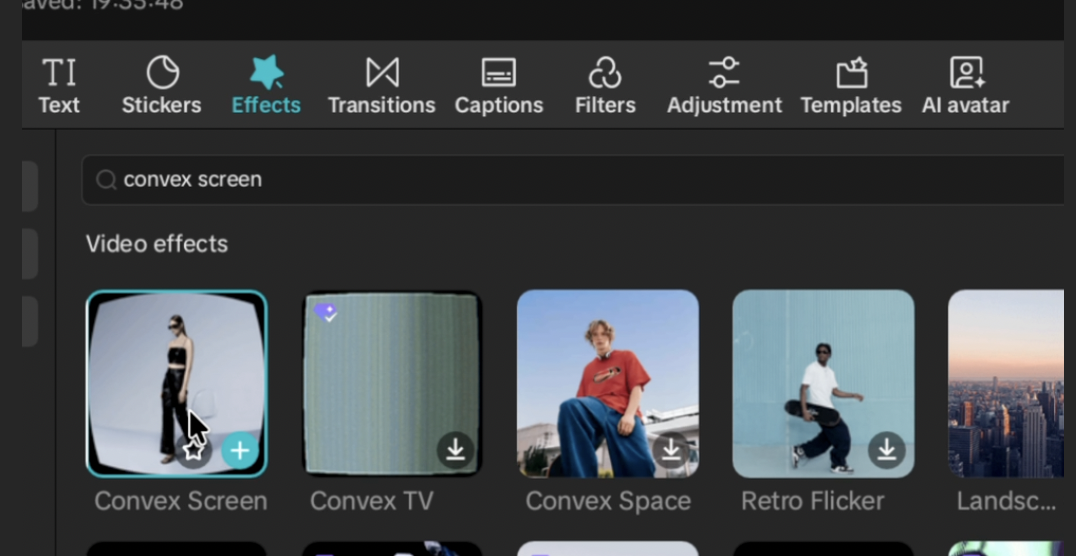
Open Effects, search for Convex Screen, then drag the effect onto your Spotify clip.

Effects → Convex Screen → Add to clip
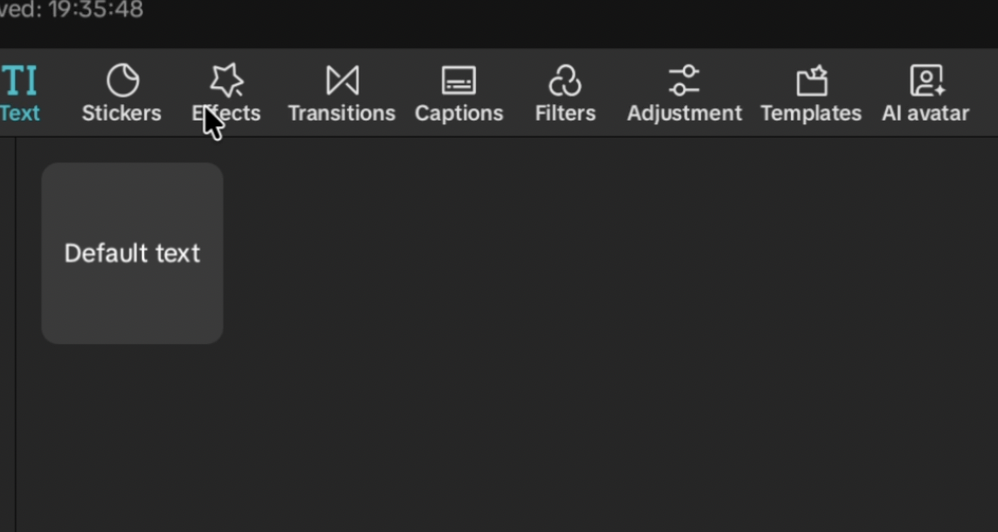
CapCut’s top toolbar with the pointer over Effects.
1. Open Effects.
A search for convex screen with the Convex Screen effect as the first result.
2. Search for Convex Screen.
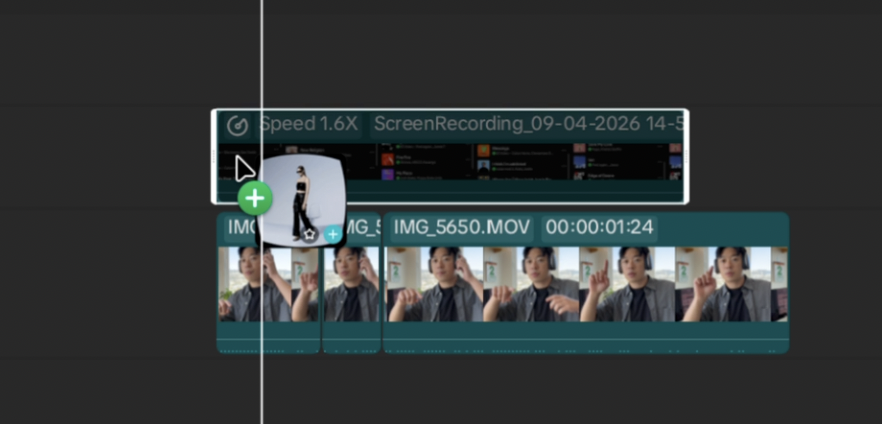
The Convex Screen effect being dragged onto the Spotify screen recording in the upper timeline track.
3. Drag it onto the Spotify clip.

Adjust the strength to 20.

Select the Convex Screen effect and set Strength to 20 for a gentle curve.
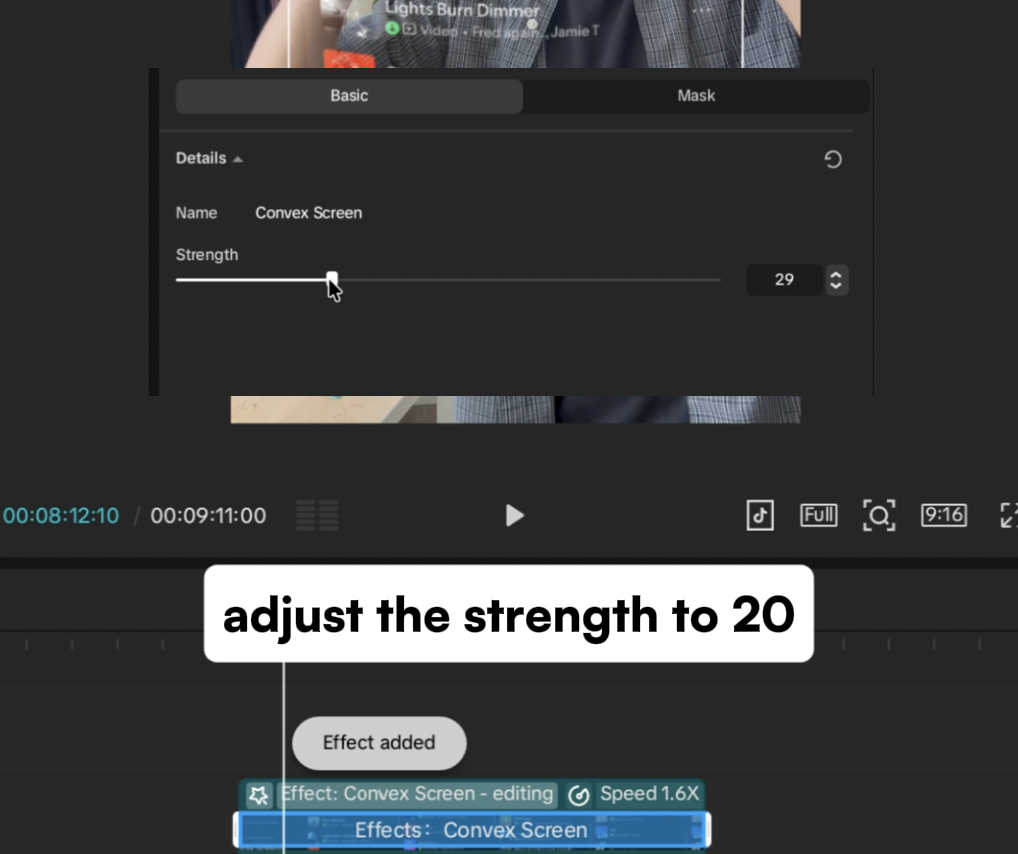
Convex Screen · Strength20
The Convex Screen Strength control, shown mid-adjustment, with a caption instructing you to set it to 20.
The slider is shown mid-adjustment. Set the final value to 20.

Done. Export your video.

There you go: a floating, curved Spotify playlist that scrolls with your gesture.

Play it back to check the timing, then export your finished video.
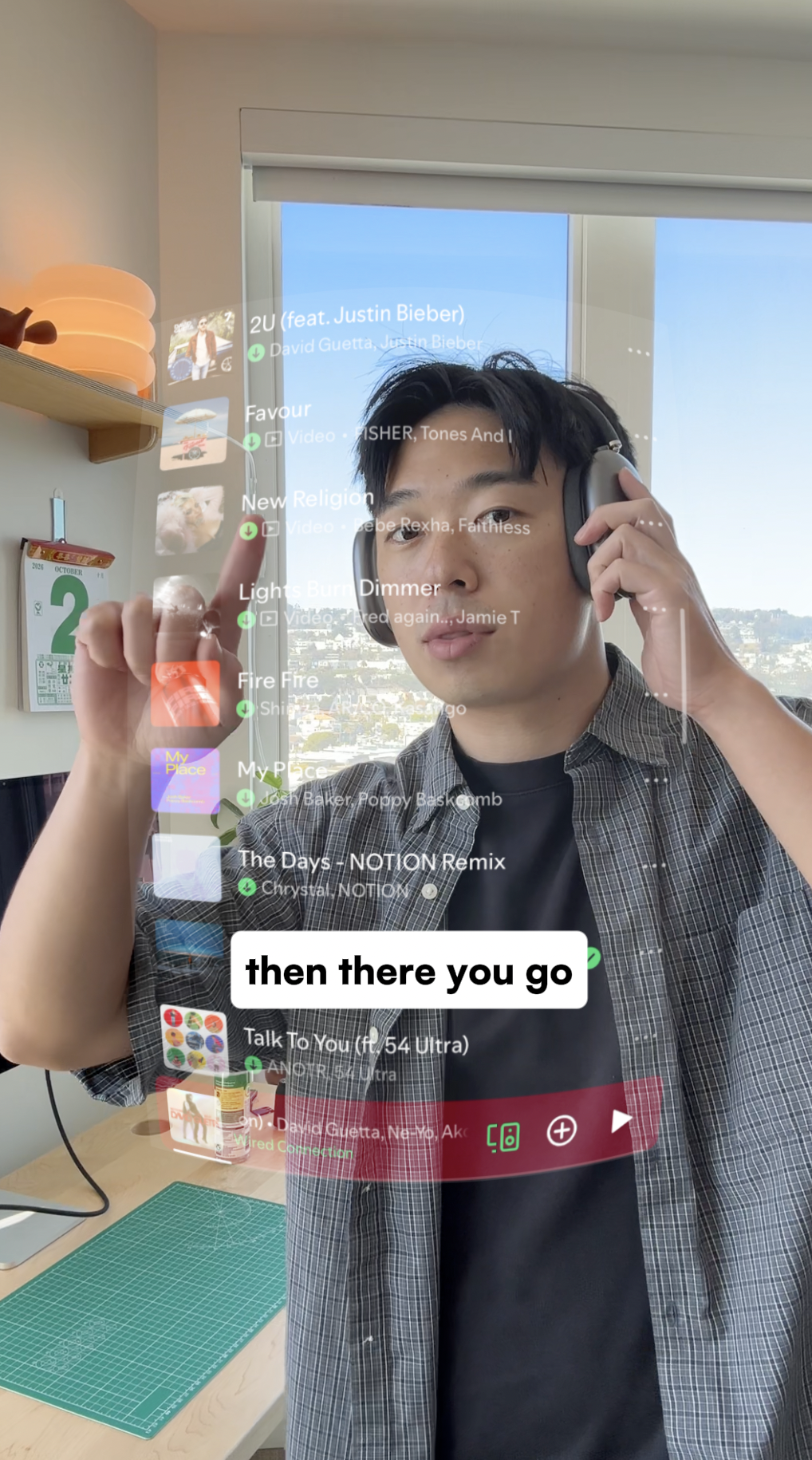
The finished effect: a curved, transparent Spotify playlist over the person as they make a scrolling gesture.
Your finished Spotify scroll effect.

Common questions

What is the Spotify scroll effect?

It is a video edit that makes a Spotify playlist look like a transparent, curved screen floating in front of you. A screen recording of the playlist is layered over your video, and the scrolling is timed to your hand gesture.

Why is there still a black box around my Spotify playlist?

Select the Spotify screen recording, rather than the video underneath, and change its blend mode from Default to Screen. Screen makes black areas transparent while keeping the lighter song titles and album artwork visible.

How do I curve the Spotify overlay?

In Effects, search for Convex Screen and drag it onto the Spotify clip. Select the effect and set Strength to 20. Apply it to the playlist clip so the curve affects the overlay.

Why does the playlist scroll out of sync with my hand?

Move the Spotify clip on the timeline until its scrolling starts with your finger movement. If the scrolling is too fast or slow, adjust the screen recording’s speed and preview the two clips together.

Is this tutorial for CapCut desktop or mobile?

The screenshots and instructions in this guide use CapCut desktop. Mobile menus and effect availability may differ, so use the desktop version to follow these screenshots.

Sources & notes

Walkthrough and screenshots by toolandtea, using CapCut desktop. Click any step screenshot to view it full size.